
Add a bank account
1
Open Payout accounts
In the dashboard sidebar, click Balances. Then click the Payout accounts tab.
2
Start a new account
Click Add bank account. The Add payout account panel opens.
3
Choose the currency and the account
- Pay me in: choose EUR or USD. This is the currency of the balance that pays out to this account.
- Account type: choose Inside Europe or Outside Europe.
- Account holder type: choose Person or Business.
4
Fill in the bank details
For a EUR account inside Europe, the form asks for:
- Full name of the account holder: the name exactly as your bank holds it, including a legal suffix such as Ltd or GmbH.
- Bank code (BIC/SWIFT): optional.
- IBAN.
5
Save
Click Save account. The panel shows Account saved and the result of the name check.
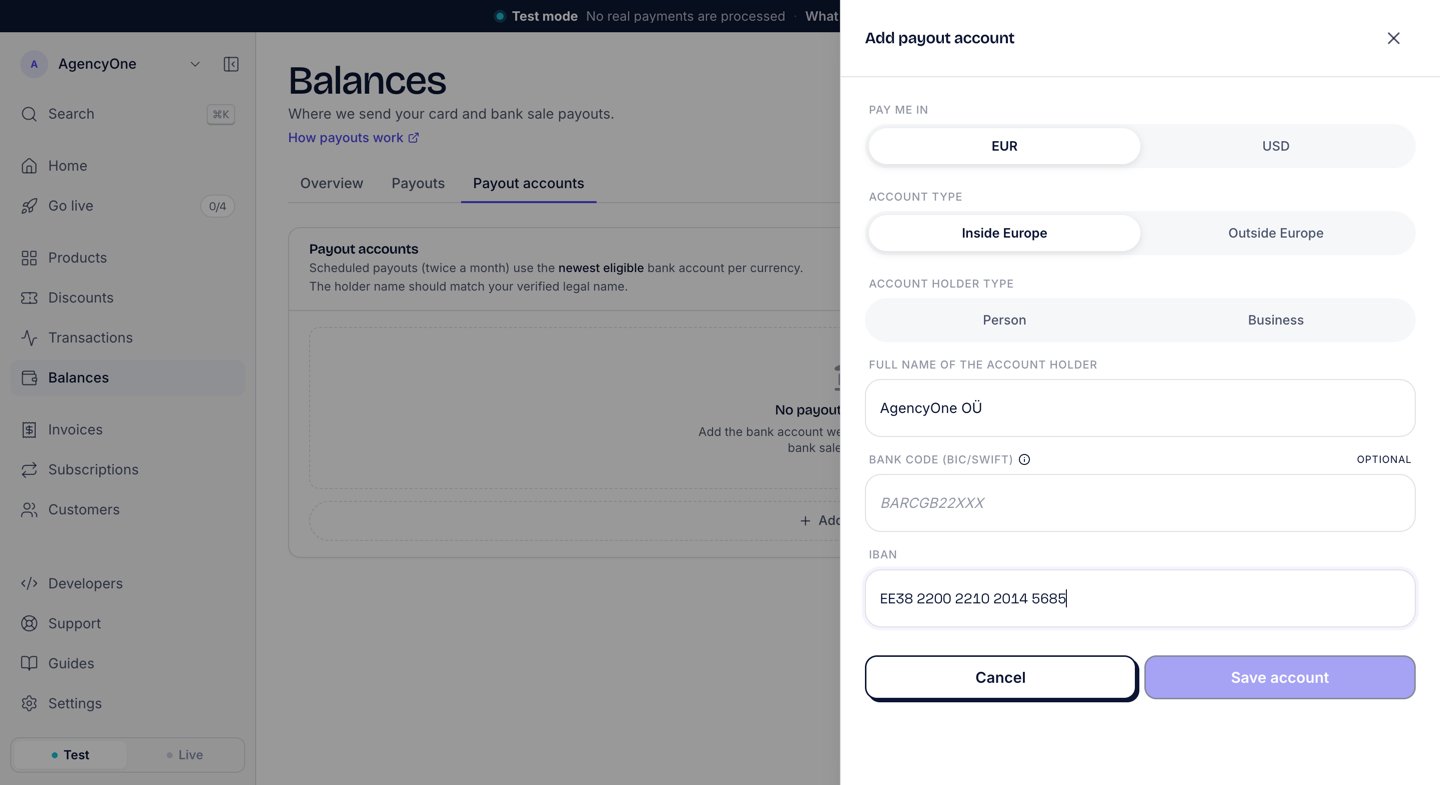
The Add payout account panel for a EUR business account inside Europe.
The name check
When you save the account, our banking partner asks your bank whether the holder name matches the account. The account then shows one of these labels:
When only part of the name matches, the panel shows Double-check the name. When the name does not match, the panel shows Name doesn’t match. If the name still does not match after you add the account again, ask your bank for the exact name on the account.
When your bank’s country has no name check, the panel shows Nothing to do here. The account is ready for payouts, but make sure that the name is correct.
Which account gets paid
For each currency, a payout goes to your newest bank account that is ready for payouts. The top of the Payout accounts section shows, per currency, the account that the next payout uses. To change the account, add the new one. To stop using an account, click the trash icon on its row, then click Deactivate.Next steps
Payouts
The schedule, the fees, and the documents for each payout.
Supported countries
Where bank payouts reach, and the payout fee table.