
The identity check runs once. When it passes, it covers every later payout.
The business review
The business review asks who you are, where your business is registered, and what you sell. A person reads your answers and your website. See Account review for the checklist we review against and the details to have ready.Submit the review
1
Open Go live
In the dashboard sidebar, click Go live.
2
Start the review
On the Verify your business row, click Start. The row says it takes “About 5 minutes”.
3
Answer the questions and submit
The form asks one question at a time. When you submit, the dashboard shows Submitted for review.
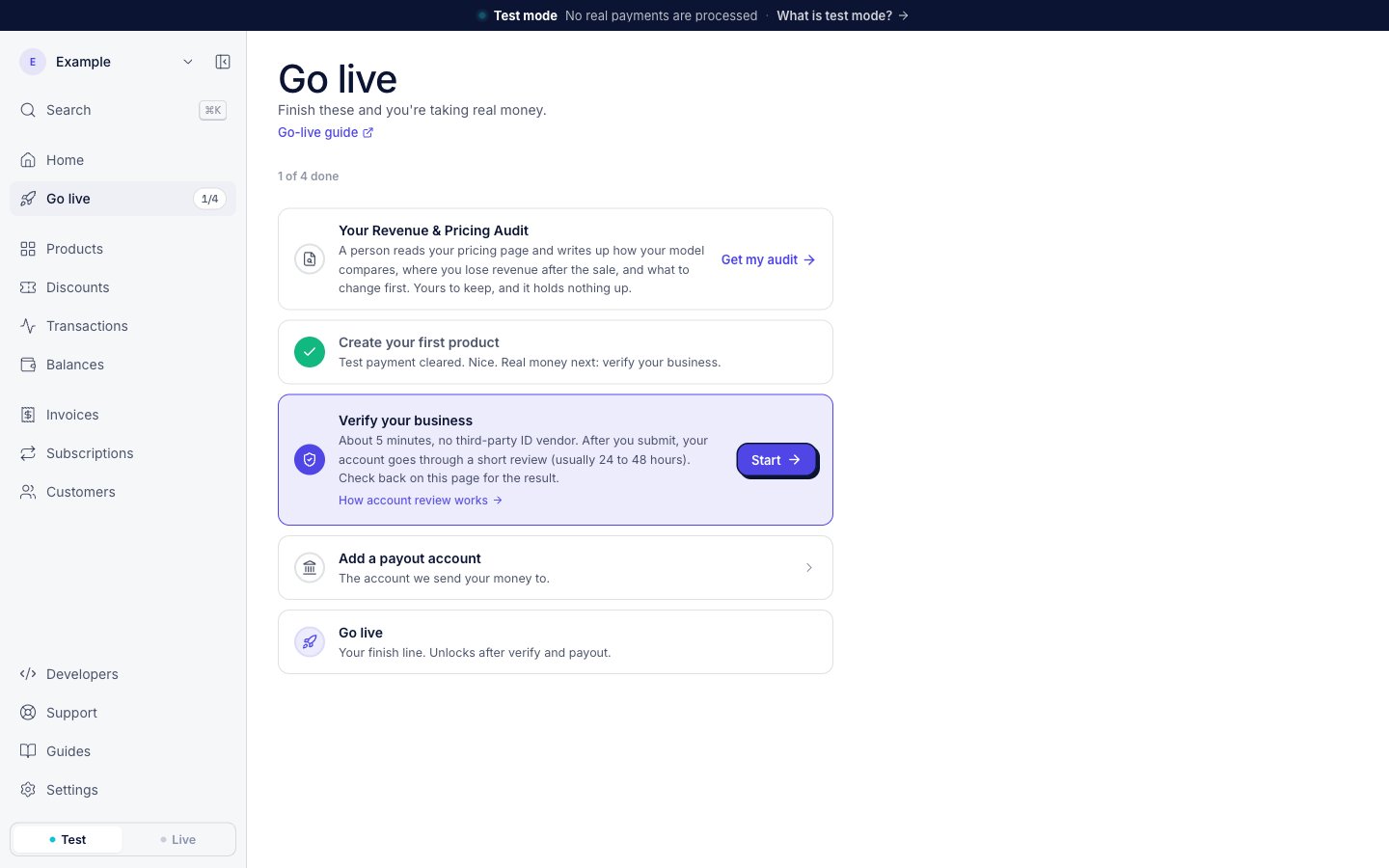
The Go live page before the business review. The Verify your business row has the Start button.
After you submit
A person reviews your business, usually within 24 to 48 hours. You cannot edit the application while it is in review. The Verify your business row on Go live shows where the review is:
Each decision also comes by email. The subject line tells you which one it is:
The identity check
The identity check confirms who we pay. It exists only in live mode, because only a live payout sends real money. An owner or admin of the account completes it. A team member with a lower role cannot start it.Documents for the check
- An ID document: you take a photo of it.
- A selfie: you take it during the check. You can finish the check on your phone.
Start the check
Before you have money to pay out, the Payout accounts tab on Balances shows a note about the check. The note has no button.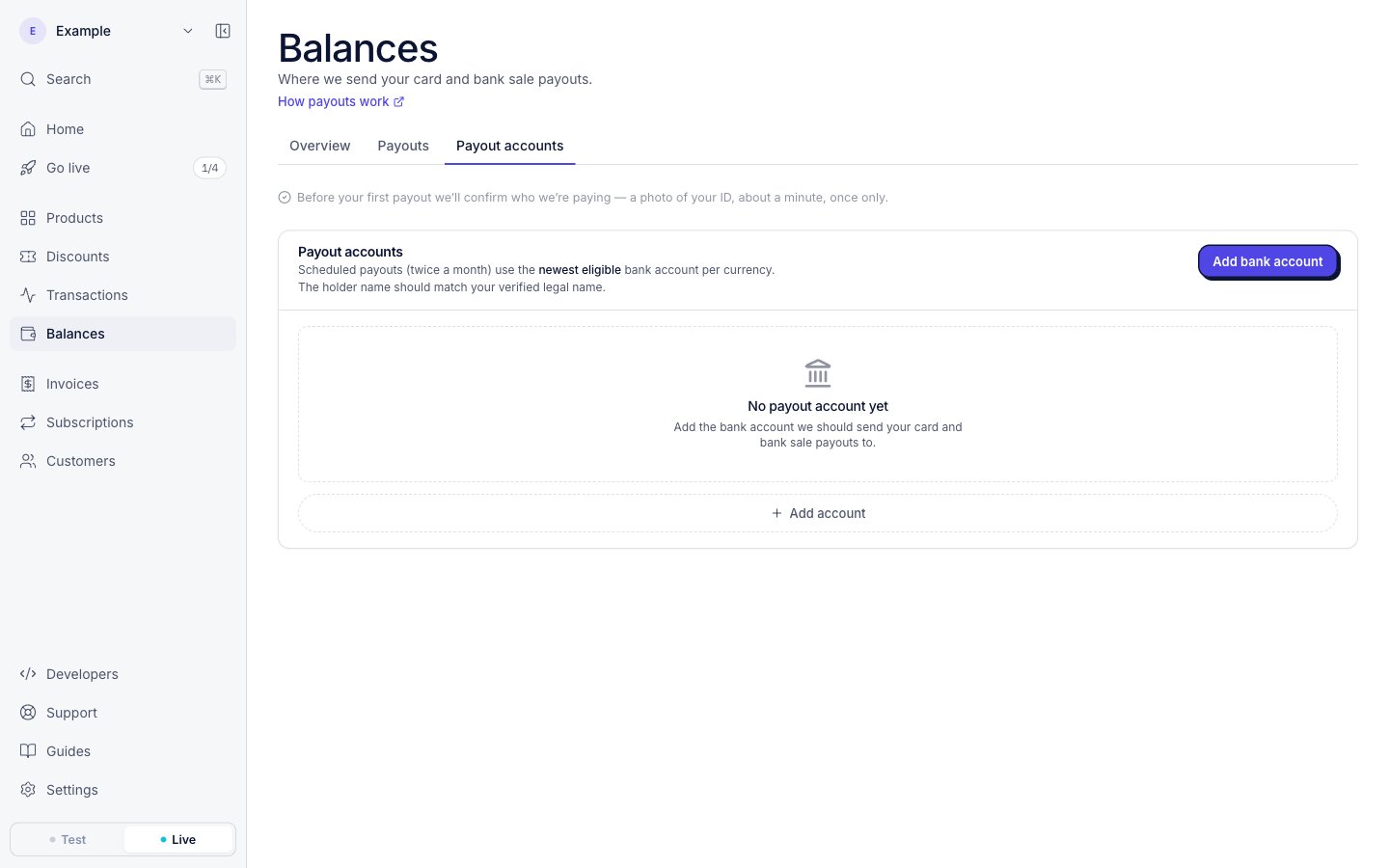
The note about the identity check on the Payout accounts tab, in live mode.
Check status messages
The same message on Home and Balances tells you where your check is:
If you request a payout before the check passes, we keep the request. The payout goes out in the first payout run after the check passes, and you do not need to request it again. See Payouts for the payout schedule.
The confirmation names who we pay. Read that name. If it is wrong, contact support before your first payout. For a company, the ID names its owner and we pay the company. That difference is expected.
Identity check emails
If the check does not go through
The usual cause is a blurry photo or a document the check cannot read. Click Try again to do the check again. If it still does not go through, reply to the email and a person works it out with you.If you cannot use the identity check
Some people cannot use the check: for example, a person with no phone that has a camera, or with a document the check does not read. Contact support. A person then confirms your identity another way. A person’s confirmation counts the same as the automatic check.Payout accounts and your name
The holder name on your payout account should match your verified legal name. When you save a payout account, a separate name check compares the name with your bank’s records. See Add a payout account for its labels and what to do about each one.Businesses managed by a platform
A business that a platform manages goes through the same two checks. The platform can file the business review for its client, and our reviewers see that the platform filed it. The identity check is the client’s own: the platform gets an ID check link and sends it, and only the client can complete it. The platform finds the link in Settings, on the Business tab, under Businesses you manage. When the check passes, the row shows Identity verified. Another app of the same company is verified with that company: we review only its product, and it has no identity check of its own.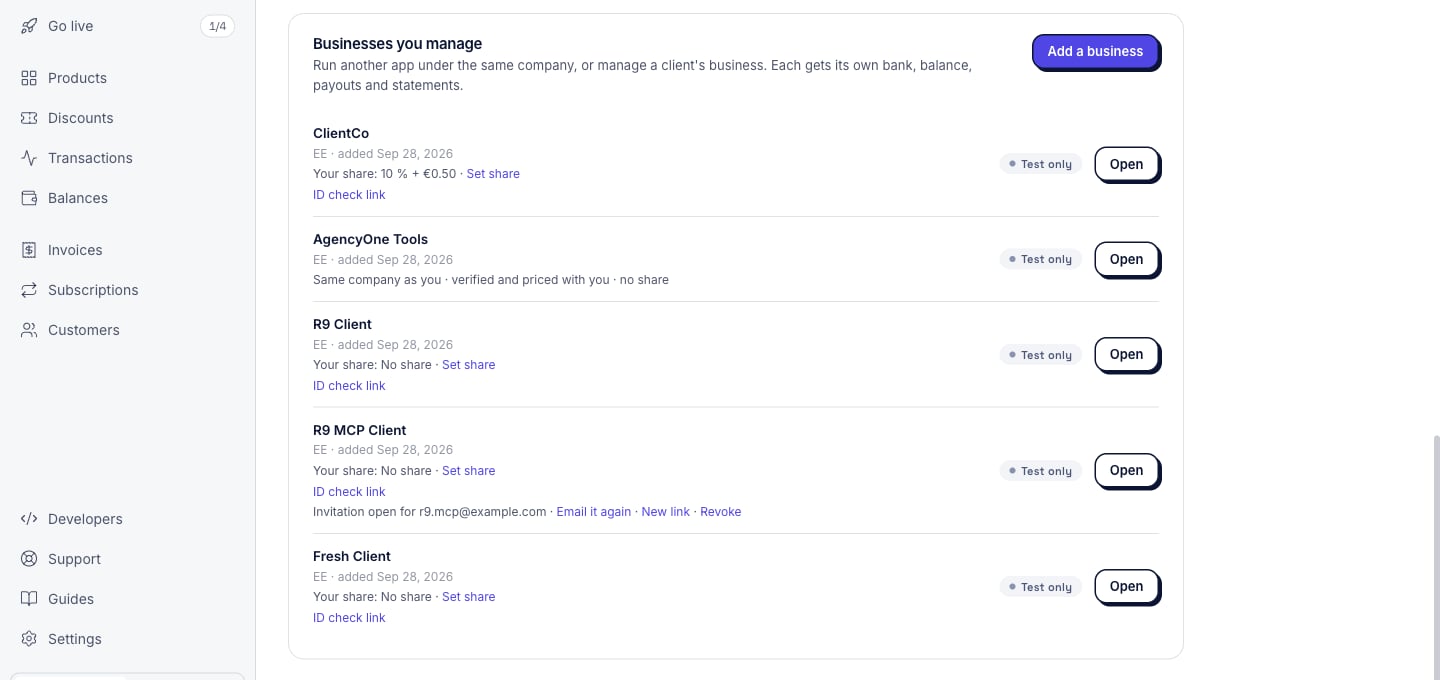
Businesses you manage, with an ID check link on each client's business.
From code
- Business review:
agenta verifysubmits it, shows its status, and sends it back after changes. See Verify. - Identity check for a client: a platform gets the client’s link with a live key. See Create a verification link.
Next steps
Account review
The checklist we review against, and the common reasons for a change request.
Go live
Every step from test mode to your first live payment.