Connect the AgentaOS MCP server, or give a coding agent the CLI, so an AI agent can create checkouts, check payments and manage subscriptions for you.
By the end of this guide an AI agent can create checkouts, check payments and manage subscriptions for your store. You ask in plain words; the agent does the work.There are two ways in. You can set up both; they do not conflict.
Connect the MCP server
Claude.ai, ChatGPT, Claude Code or Cursor. You approve the connection once in the browser and paste no key.
Give a coding agent the CLI
Any agent that runs shell commands, including one in CI. It uses the agenta CLI and the SKILL.md prompt.
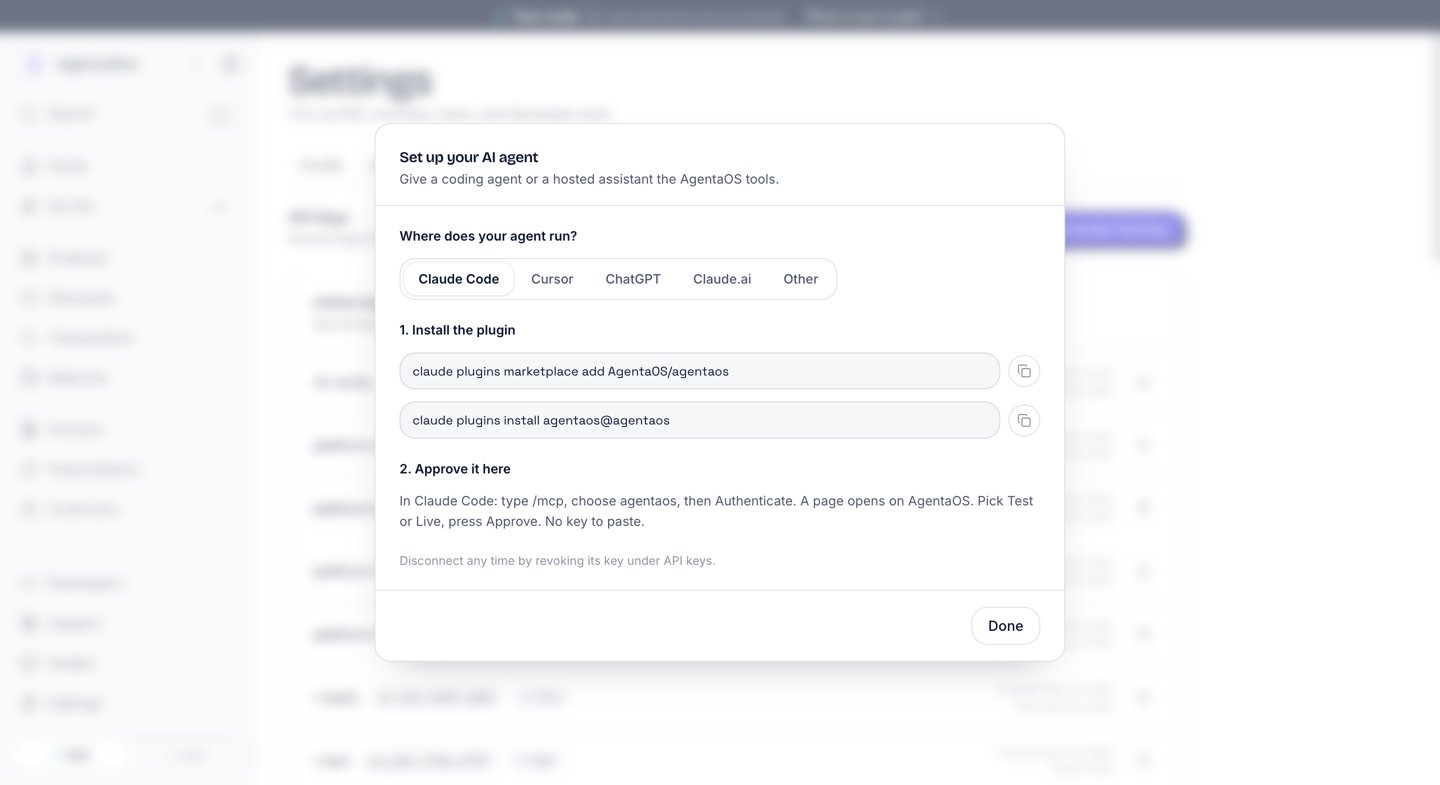
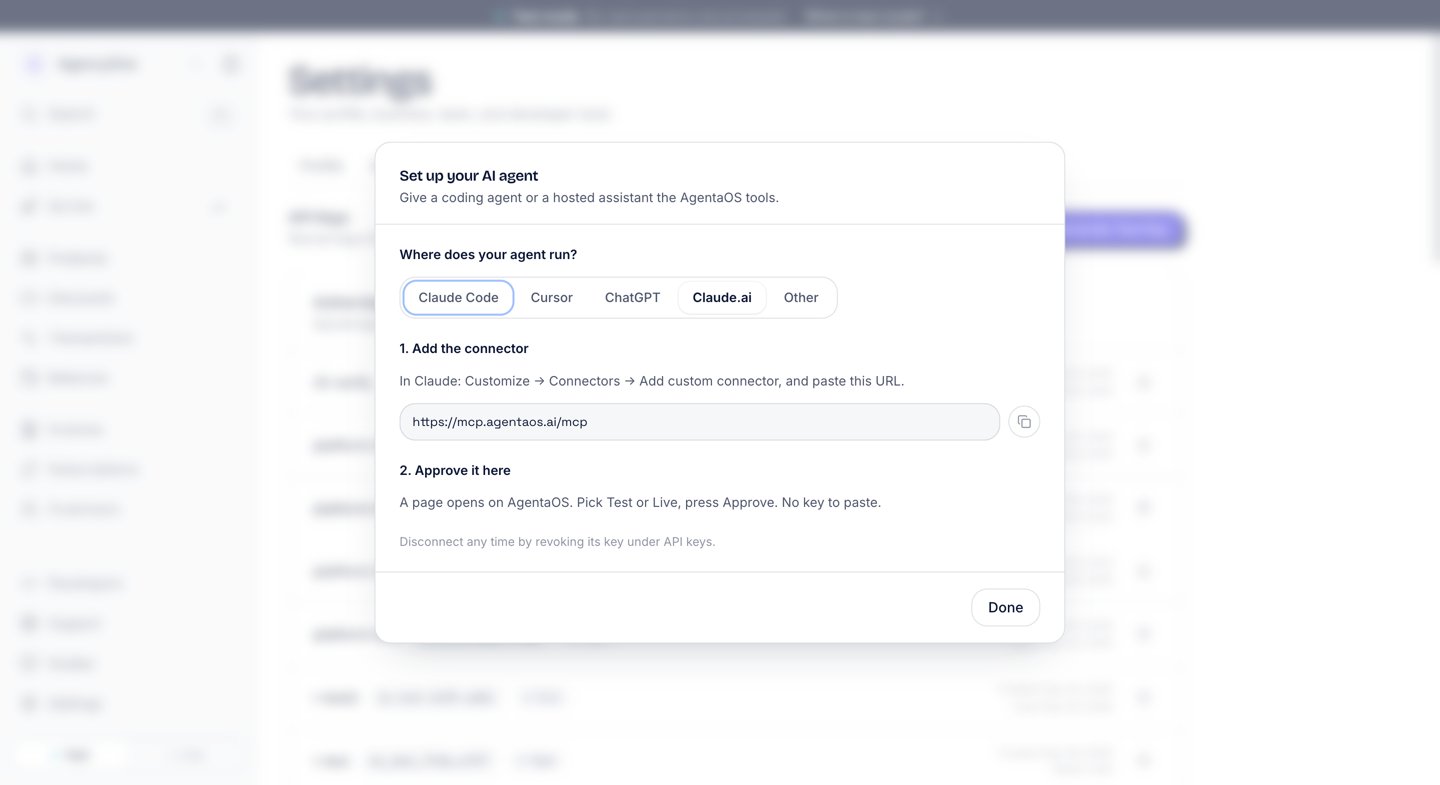
In the dashboard, open Developers → API keys in the sidebar and click Connect an AI agent. The Set up your AI agent dialog asks “Where does your agent run?” Pick your client: Claude Code, Cursor, ChatGPT, Claude.ai, or Other. The dialog shows the steps for that client.
The Set up your AI agent dialog with Claude Code picked: install the plugin, then approve it in AgentaOS.
The same dialog with Claude.ai picked: add the connector, then approve it in AgentaOS.
2
Connect your agent
Follow MCP server for your client. For Claude.ai or ChatGPT, follow Connect Claude.ai or ChatGPT. Pick Test mode on the approval page while you try things out.
3
Try a prompt
Ask your agent:
Create a checkout for 50 EUR for my consulting invoice.
The agent calls agenta_pay_checkout and answers with the link to share, in a sentence like this one: “Checkout for €50.00 created. Share https://… with your customer.”
4
Manage what you sold
Ask it directly:
List my last 5 checkouts.
Cancel the subscription for ana@example.com at the end of the current period.
The agent calls the matching tools, such as agenta_pay_list, agenta_subscriptions_list and agenta_subscriptions_cancel, and reports back in the chat.
Install the agenta CLI with the command on Install the CLI, then sign in with agenta login. See Login.agenta login is the one step that needs you: it opens a browser for sign-in. Every command an agent runs after that is non-interactive.
2
Give your agent the skill
Tell your coding agent to fetch and follow the skill prompt:
In Claude Code, you can install the plugin instead. See AI agent setup.It teaches the agent the agenta commands and their flags. It also tells the agent to run agenta status --json first and to pass --json to every command, so the output is JSON the agent can read.
3
Try a prompt
Ask it something like:
Create a checkout for 50 EUR for my consulting invoice.
The agent runs agenta status --json to confirm payment tools are ready, then agenta pay checkout -a 50 --json, and hands you back the checkoutUrl to share with your client.
An agent connected in test mode, or running on a test key, sees and creates test data only. It cannot move real money.
On the MCP path, the agent calls agenta_status_get. Before you go live, the answer starts with “Test payments work now.” On the CLI path, the agent runs agenta status --json and reports paymentTools.ready: true, along with your business.
Setup for each client, and every tool your agent can use.
CLI install
The full agenta CLI reference, for scripts outside an AI agent too.
Receive webhooks in Express
Checkouts an agent creates still need your server to fulfill them on completion.
{"docsConfig":{"theme":"aspen","$schema":"https://mintlify.com/docs.json","name":"AgentaOS","colors":{"primary":"#4F46E5","light":"#A5B4FC","dark":"#4338CA"},"logo":{"light":"https://mintcdn.com/agentokratia/m99r4jmD11JEgdx5/images/agentaos-icon.png?fit=max\u0026auto=format\u0026n=m99r4jmD11JEgdx5\u0026q=85\u0026s=0b6178b7724b65d6c92a4e09b7f7f577","dark":"https://mintcdn.com/agentokratia/m99r4jmD11JEgdx5/images/agentaos-icon.png?fit=max\u0026auto=format\u0026n=m99r4jmD11JEgdx5\u0026q=85\u0026s=0b6178b7724b65d6c92a4e09b7f7f577","href":"https://agentaos.ai"},"favicon":"https://mintcdn.com/agentokratia/m99r4jmD11JEgdx5/images/agentaos-icon.png?fit=max\u0026auto=format\u0026n=m99r4jmD11JEgdx5\u0026q=85\u0026s=0b6178b7724b65d6c92a4e09b7f7f577","api":{"openapi":"openapi.json"},"appearance":{"default":"system"},"background":{"decoration":"grid","color":{"light":"#FFFFFF","dark":"#0B1533"}},"navbar":{"links":[{"href":"https://agentaos.ai","label":"Website"}],"primary":{"type":"button","label":"Dashboard","href":"https://app.agentaos.ai"}},"footer":{"socials":{"github":"https://github.com/AgentaOS/agentaos","x":"https://x.com/agentaos","linkedin":"https://linkedin.com/company/agentaos"},"links":[{"header":"Product","items":[{"label":"Pricing","href":"/mor/pricing"},{"label":"Supported countries","href":"/mor/supported-countries"},{"label":"Product release phases","href":"/getting-started/release-phases"}]},{"header":"Developers","items":[{"label":"API reference","href":"/api-reference/introduction"},{"label":"SDK","href":"/sdk/pay-overview"},{"label":"CLI","href":"/cli/install"},{"label":"Changelog","href":"/changelog/overview"}]},{"header":"Company","items":[{"label":"Website","href":"https://agentaos.ai"},{"label":"Support","href":"mailto:contact@agentaos.ai"},{"label":"Why was I charged?","href":"/for-customers/why-charged"}]}]},"search":{"prompt":"Search docs..."},"fonts":{"heading":{"family":"Bricolage Grotesque"},"body":{"family":"Inter"}},"icons":{"library":"fontawesome"},"styling":{"eyebrows":"section","codeblocks":"system","latex":false},"banner":{"content":"AgentaOS is the Merchant of Record for AI founders. [Sell software globally →](https://agentaos.ai)","dismissible":true},"contextual":{"options":["copy","view","chatgpt","claude"],"display":"header"},"thumbnails":{"appearance":"dark"},"navigation":{"global":{"anchors":[{"anchor":"llms.txt","icon":"file-lines","href":"/llms-full.txt"},{"anchor":"Support","icon":"life-ring","href":"mailto:contact@agentaos.ai"}]},"pages":[]}},"deployment":{"deploymentMetadataValue":{"subdomain":"agentokratia","hasAudioNarration":false,"actualSubdomain":"agentokratia","customDomains":["docs.agentaos.ai"],"gitSource":{"type":"github","owner":"agentaos","repo":"docs","deployBranch":"main","contentDirectory":"","isPrivate":true,"mountPath":"","label":""},"chroma":{"liveDeploymentHistoryId":"6ae7c2fe766ca8399e8318b9","collectionId":"f7864f24-4a21-4b63-84a1-60f0d36515da","schemaVersion":"v3","latestBuiltDeploymentHistoryId":"6ae7c2fe766ca8399e8318b9"},"entitlements":{},"buildId":"6ae7c2fe766ca8399e8318b9","clientVersion":"0.0.4067","searchFilterCounts":[{"language":"default","tag":"Reference","count":75},{"language":"default","tag":"API Reference","count":51},{"language":"default","tag":"Documentation","count":38},{"language":"default","tag":"SDK","count":13},{"language":"default","tag":"Guides","count":12},{"language":"default","tag":"CLI","count":11},{"language":"default","tag":"Invoices","count":8},{"language":"default","tag":"Subscriptions","count":8},{"language":"default","tag":"Sell","count":8},{"language":"default","tag":"Payouts","count":7}]},"assistantConfig":{"enableAskAiButton":false,"enableStarterQuestions":false,"enableAskAiSearchBar":true},"basePath":"","hasChatPermissions":false,"hasWebMcpPermissions":false,"toggles":[{"name":"kill-isr","enabled":true,"variant":{"name":"disabled","enabled":false,"feature_enabled":true},"impressionData":false},{"name":"agent-mintlify-slack","enabled":true,"variant":{"name":"disabled","enabled":false,"feature_enabled":true},"impressionData":false},{"name":"agent-integrations-settings","enabled":true,"variant":{"name":"disabled","enabled":false,"feature_enabled":true},"impressionData":false},{"name":"rbac-expansion","enabled":true,"variant":{"name":"disabled","enabled":false,"feature_enabled":true},"impressionData":false},{"name":"automations-pr-grouping","enabled":true,"variant":{"name":"disabled","enabled":false,"feature_enabled":true},"impressionData":false},{"name":"custom-prefix","enabled":true,"variant":{"name":"disabled","enabled":false,"feature_enabled":true},"impressionData":false},{"name":"analytics-v7","enabled":true,"variant":{"name":"disabled","enabled":false,"feature_enabled":true},"impressionData":false},{"name":"user-flows-analytics","enabled":true,"variant":{"name":"disabled","enabled":false,"feature_enabled":true},"impressionData":false},{"name":"no-publish-flow","enabled":true,"variant":{"name":"disabled","enabled":false,"feature_enabled":true},"impressionData":false},{"name":"workos-onboarding","enabled":true,"variant":{"name":"disabled","enabled":false,"feature_enabled":true},"impressionData":false},{"name":"llms-txt-v2","enabled":true,"variant":{"name":"disabled","enabled":false,"feature_enabled":true},"impressionData":false},{"name":"snapshot-serving-live","enabled":true,"variant":{"name":"disabled","enabled":false,"feature_enabled":true},"impressionData":false},{"name":"stripTemperatureMiddleware","enabled":true,"variant":{"name":"disabled","enabled":false,"feature_enabled":true},"impressionData":false},{"name":"support-platform-pylon-zendesk","enabled":true,"variant":{"name":"disabled","enabled":false,"feature_enabled":true},"impressionData":false},{"name":"snapshot-serving","enabled":true,"variant":{"name":"disabled","enabled":false,"feature_enabled":true},"impressionData":false},{"name":"instant-rollback","enabled":true,"variant":{"name":"disabled","enabled":false,"feature_enabled":true},"impressionData":false},{"name":"granular-notifications-server","enabled":true,"variant":{"name":"disabled","enabled":false,"feature_enabled":true},"impressionData":false},{"name":"granular-notifications","enabled":true,"variant":{"name":"disabled","enabled":false,"feature_enabled":true},"impressionData":false},{"name":"automations-fable","enabled":true,"variant":{"name":"disabled","enabled":false,"feature_enabled":true},"impressionData":false},{"name":"fixed-ai-action-pricing","enabled":true,"variant":{"name":"disabled","enabled":false,"feature_enabled":true},"impressionData":false},{"name":"automation-resolve-merge-conflict","enabled":true,"variant":{"name":"disabled","enabled":false,"feature_enabled":true},"impressionData":false},{"name":"scoped-publishing","enabled":true,"variant":{"name":"disabled","enabled":false,"feature_enabled":true},"impressionData":false},{"name":"mintql","enabled":true,"variant":{"name":"disabled","enabled":false,"feature_enabled":true},"impressionData":false},{"name":"page-level-analytics","enabled":true,"variant":{"name":"disabled","enabled":false,"feature_enabled":true},"impressionData":false},{"name":"editor-version-history-v2","enabled":true,"variant":{"name":"disabled","enabled":false,"feature_enabled":true},"impressionData":false},{"name":"billing-page-v2","enabled":true,"variant":{"name":"disabled","enabled":false,"feature_enabled":true},"impressionData":false},{"name":"full-page-search","enabled":true,"variant":{"name":"disabled","enabled":false,"feature_enabled":true},"impressionData":false},{"name":"workspace-projects","enabled":true,"variant":{"name":"disabled","enabled":false,"feature_enabled":true},"impressionData":false},{"name":"assistant-v5","enabled":true,"variant":{"name":"disabled","enabled":false,"feature_enabled":true},"impressionData":false},{"name":"fork-pr-previews","enabled":true,"variant":{"name":"disabled","enabled":false,"feature_enabled":true},"impressionData":false},{"name":"revalidation-jwt","enabled":true,"variant":{"name":"disabled","enabled":false,"feature_enabled":true},"impressionData":false},{"name":"vite-origin","enabled":true,"variant":{"name":"disabled","enabled":false,"feature_enabled":true},"impressionData":false},{"name":"workos-sso-scim","enabled":true,"variant":{"name":"disabled","enabled":false,"feature_enabled":true},"impressionData":false},{"name":"hobby-abuse-scan","enabled":true,"variant":{"name":"disabled","enabled":false,"feature_enabled":true},"impressionData":false},{"name":"dashboard-inbox","enabled":true,"variant":{"name":"disabled","enabled":false,"feature_enabled":true},"impressionData":false},{"name":"workos-signup","enabled":true,"variant":{"name":"disabled","enabled":false,"feature_enabled":true},"impressionData":false},{"name":"turbopuffer-dual-write","enabled":true,"variant":{"name":"disabled","enabled":false,"feature_enabled":true},"impressionData":false},{"name":"workos-enabled","enabled":true,"variant":{"name":"disabled","enabled":false,"feature_enabled":true},"impressionData":false},{"name":"approve-review-flow","enabled":true,"variant":{"name":"disabled","enabled":false,"feature_enabled":true},"impressionData":false},{"name":"sso-setup-deadline-banner","enabled":true,"variant":{"name":"disabled","enabled":false,"feature_enabled":true},"impressionData":false},{"name":"turbopuffer-serve","enabled":true,"variant":{"name":"disabled","enabled":false,"feature_enabled":true},"impressionData":false}],"googleFontsInlined":true},"customCss":[{"filePath":"custom.css","content":"[data-component-part=\"card-icon\"]{background:rgba(79, 70, 229, 0.08);border-radius:0.5rem;padding:0.4rem}.dark [data-component-part=\"card-icon\"]{background:rgba(165, 180, 252, 0.12)}.card{border:1px solid rgba(79, 70, 229, 0.08);transition:all 0.2s ease}.card:hover{border-color:rgba(79, 70, 229, 0.22);box-shadow:0 8px 24px rgba(79, 70, 229, 0.07);transform:translateY(-1px)}.dark .card:hover{box-shadow:0 8px 24px rgba(79, 70, 229, 0.14)}h1{letter-spacing:-0.02em}h2{margin-top:2rem}table th{background:rgba(79, 70, 229, 0.04);font-weight:600}.dark table th{background:rgba(79, 70, 229, 0.10)}table tr:hover{background:rgba(79, 70, 229, 0.02)}pre{border:1px solid rgba(11, 21, 51, 0.08)!important;border-radius:8px!important}#content-area a.link,.prose a.link{color:#4F46E5!important;text-decoration:underline;text-decoration-color:rgba(79, 70, 229, 0.35);text-underline-offset:2px;font-weight:500}#content-area a.link:hover,.prose a.link:hover{text-decoration-color:#4F46E5!important}.dark #content-area a.link,.dark .prose a.link{color:#A5B4FC!important;text-decoration-color:rgba(165, 180, 252, 0.4)}#banner{background-color:#0B1533!important}.preview-pill{display:inline-block;vertical-align:baseline;margin-right:0.35rem;padding:0.1rem 0.55rem;border-radius:9999px;font-size:0.72rem;font-weight:600;letter-spacing:0.02em;line-height:1.4;color:#4338CA;background:rgba(79, 70, 229, 0.12);white-space:nowrap}.dark .preview-pill{color:#C7D2FE;background:rgba(165, 180, 252, 0.16)}.preview-pill-public{color:#047857;background:rgba(16, 185, 129, 0.12)}.dark .preview-pill-public{color:#A7F3D0;background:rgba(52, 211, 153, 0.16)}"}],"page":{"pagePath":"guides/ai-agent","slug":"/guides/ai-agent","pageMetadata":{"title":"Let an AI agent run your store","description":"Connect the AgentaOS MCP server, or give a coding agent the CLI, so an AI agent can create checkouts, check payments and manage subscriptions for you.","icon":"wand-magic-sparkles","href":"/guides/ai-agent"},"description":{"compiledSource":"\"use strict\";\nconst {jsx: _jsx} = arguments[0];\nconst {useMDXComponents: _provideComponents} = arguments[0];\nfunction _createMdxContent(props) {\n const _components = {\n p: \"p\",\n ..._provideComponents(),\n ...props.components\n };\n return _jsx(_components.p, {\n children: \"Connect the AgentaOS MCP server, or give a coding agent the CLI, so an AI agent can create checkouts, check payments and manage subscriptions for you.\"\n });\n}\nfunction MDXContent(props = {}) {\n const {wrapper: MDXLayout} = {\n ..._provideComponents(),\n ...props.components\n };\n return MDXLayout ? _jsx(MDXLayout, {\n ...props,\n children: _jsx(_createMdxContent, {\n ...props\n })\n }) : _createMdxContent(props);\n}\nreturn {\n default: MDXContent\n};\n","frontmatter":{},"scope":{}},"pageType":"default","mdx":{"mdxSource":{"compiledSource":"\"use strict\";const{Fragment:_Fragment,jsx:_jsx,jsxs:_jsxs}=arguments[0];const{useMDXComponents:_provideComponents}=arguments[0];function _createMdxContent(props){const _components={a:`a`,blockquote:`blockquote`,code:`code`,p:`p`,strong:`strong`,..._provideComponents(),...props.components},{Card,Columns,Frame,Heading,OptimizedImage,Step,Steps,Tip}=_components;if(!Card)_missingMdxReference(`Card`,true);if(!Columns)_missingMdxReference(`Columns`,true);if(!Frame)_missingMdxReference(`Frame`,true);if(!Heading)_missingMdxReference(`Heading`,true);if(!OptimizedImage)_missingMdxReference(`OptimizedImage`,true);if(!Step)_missingMdxReference(`Step`,true);if(!Steps)_missingMdxReference(`Steps`,true);if(!Tip)_missingMdxReference(`Tip`,true);return _jsxs(_Fragment,{children:[_jsx(_components.p,{children:`By the end of this guide an AI agent can create checkouts, check payments and manage subscriptions for your store. You ask in plain words; the agent does the work.`}),`\n`,_jsx(_components.p,{children:`There are two ways in. You can set up both; they do not conflict.`}),`\n`,_jsxs(Columns,{cols:2,children:[_jsx(Card,{title:`Connect the MCP server`,icon:`plug`,children:_jsx(_components.p,{children:`Claude.ai, ChatGPT, Claude Code or Cursor. You approve the connection once in the browser and paste no key.`})}),_jsx(Card,{title:`Give a coding agent the CLI`,icon:`terminal`,children:_jsxs(_components.p,{children:[`Any agent that runs shell commands, including one in CI. It uses the `,_jsx(_components.code,{children:`agenta`}),` CLI and the SKILL.md prompt.`]})})]}),`\n`,_jsx(Heading,{level:`2`,id:`before-you-start`,children:`Before you start`}),`\n`,_jsxs(_components.p,{children:[`You do not need an account up front. When you approve the connection or run `,_jsx(_components.code,{children:`agenta login`}),`, you sign in, and a new email creates your account.`]}),`\n`,_jsx(Heading,{level:`2`,id:`path-a-connect-the-mcp-server`,children:`Path A: connect the MCP server`}),`\n`,_jsxs(Steps,{children:[_jsxs(Step,{title:`Open the setup dialog`,children:[_jsxs(_components.p,{children:[`In the dashboard, open `,_jsx(_components.strong,{children:`Developers → API keys`}),` in the sidebar and click `,_jsx(_components.strong,{children:`Connect an AI agent`}),`. The `,_jsx(_components.strong,{children:`Set up your AI agent`}),` dialog asks “Where does your agent run?” Pick your client: `,_jsx(_components.strong,{children:`Claude Code`}),`, `,_jsx(_components.strong,{children:`Cursor`}),`, `,_jsx(_components.strong,{children:`ChatGPT`}),`, `,_jsx(_components.strong,{children:`Claude.ai`}),`, or `,_jsx(_components.strong,{children:`Other`}),`. The dialog shows the steps for that client.`]}),_jsx(Frame,{caption:`The Set up your AI agent dialog with Claude Code picked: install the plugin, then approve it in AgentaOS.`,children:_jsx(OptimizedImage,{src:`https://mintcdn.com/agentokratia/ob7A8SZLgGb2oPrT/images/agents/set-up-your-ai-agent.png?fit=max\u0026auto=format\u0026n=ob7A8SZLgGb2oPrT\u0026q=85\u0026s=e4662250bf1ea26a103ddef8e4a27f81`,alt:`The Set up your AI agent dialog in Settings. The Claude Code tab is selected next to Cursor, ChatGPT, Claude.ai and Other. Step 1, Install the plugin, shows two claude plugins commands with copy buttons. Step 2, Approve it here, says to type /mcp, choose agentaos, then Authenticate, and pick Test or Live on the AgentaOS page.`,\"data-og-width\":`1440`,width:`1440`,\"data-og-height\":`785`,height:`785`,\"data-path\":`images/agents/set-up-your-ai-agent.png`,\"data-optimize\":`true`,\"data-opv\":`3`,srcset:`https://mintcdn.com/agentokratia/ob7A8SZLgGb2oPrT/images/agents/set-up-your-ai-agent.png?w=280\u0026fit=max\u0026auto=format\u0026n=ob7A8SZLgGb2oPrT\u0026q=85\u0026s=4ffa2d577fb162babd25db96ad078eed 280w, https://mintcdn.com/agentokratia/ob7A8SZLgGb2oPrT/images/agents/set-up-your-ai-agent.png?w=560\u0026fit=max\u0026auto=format\u0026n=ob7A8SZLgGb2oPrT\u0026q=85\u0026s=c222641a7c4ddddba3d043ae3f320b82 560w, https://mintcdn.com/agentokratia/ob7A8SZLgGb2oPrT/images/agents/set-up-your-ai-agent.png?w=840\u0026fit=max\u0026auto=format\u0026n=ob7A8SZLgGb2oPrT\u0026q=85\u0026s=22130ebb4ad53fa34dbff8ce28016019 840w, https://mintcdn.com/agentokratia/ob7A8SZLgGb2oPrT/images/agents/set-up-your-ai-agent.png?w=1100\u0026fit=max\u0026auto=format\u0026n=ob7A8SZLgGb2oPrT\u0026q=85\u0026s=fae597b50c5c053d73261808961b9923 1100w, https://mintcdn.com/agentokratia/ob7A8SZLgGb2oPrT/images/agents/set-up-your-ai-agent.png?w=1650\u0026fit=max\u0026auto=format\u0026n=ob7A8SZLgGb2oPrT\u0026q=85\u0026s=f6dc889906a00ce812c28388bb6026c0 1650w, https://mintcdn.com/agentokratia/ob7A8SZLgGb2oPrT/images/agents/set-up-your-ai-agent.png?w=2500\u0026fit=max\u0026auto=format\u0026n=ob7A8SZLgGb2oPrT\u0026q=85\u0026s=df7a5d2a9249412793daeb92b5ba356a 2500w`})}),_jsx(Frame,{caption:`The same dialog with Claude.ai picked: add the connector, then approve it in AgentaOS.`,children:_jsx(OptimizedImage,{src:`https://mintcdn.com/agentokratia/ob7A8SZLgGb2oPrT/images/agents/set-up-your-ai-agent-claude.png?fit=max\u0026auto=format\u0026n=ob7A8SZLgGb2oPrT\u0026q=85\u0026s=502d3a92606ccaed561125b3be5a481d`,alt:`The Set up your AI agent dialog with the Claude.ai tab selected. Step 1, Add the connector, says: In Claude, Customize, Connectors, Add custom connector, and paste this URL, followed by https://mcp.agentaos.ai/mcp with a copy button. Step 2, Approve it here, says a page opens on AgentaOS where you pick Test or Live and press Approve.`,\"data-og-width\":`1440`,width:`1440`,\"data-og-height\":`785`,height:`785`,\"data-path\":`images/agents/set-up-your-ai-agent-claude.png`,\"data-optimize\":`true`,\"data-opv\":`3`,srcset:`https://mintcdn.com/agentokratia/ob7A8SZLgGb2oPrT/images/agents/set-up-your-ai-agent-claude.png?w=280\u0026fit=max\u0026auto=format\u0026n=ob7A8SZLgGb2oPrT\u0026q=85\u0026s=fd86f34200f029d93238f4f96fe9e0bc 280w, https://mintcdn.com/agentokratia/ob7A8SZLgGb2oPrT/images/agents/set-up-your-ai-agent-claude.png?w=560\u0026fit=max\u0026auto=format\u0026n=ob7A8SZLgGb2oPrT\u0026q=85\u0026s=3c324a4fed27db856b609872e38cff76 560w, https://mintcdn.com/agentokratia/ob7A8SZLgGb2oPrT/images/agents/set-up-your-ai-agent-claude.png?w=840\u0026fit=max\u0026auto=format\u0026n=ob7A8SZLgGb2oPrT\u0026q=85\u0026s=e423f58f81fdc8ac0d4358bc25291f7d 840w, https://mintcdn.com/agentokratia/ob7A8SZLgGb2oPrT/images/agents/set-up-your-ai-agent-claude.png?w=1100\u0026fit=max\u0026auto=format\u0026n=ob7A8SZLgGb2oPrT\u0026q=85\u0026s=9e4ac33480d2bb5b170920e8453e8c18 1100w, https://mintcdn.com/agentokratia/ob7A8SZLgGb2oPrT/images/agents/set-up-your-ai-agent-claude.png?w=1650\u0026fit=max\u0026auto=format\u0026n=ob7A8SZLgGb2oPrT\u0026q=85\u0026s=b10f4d6ddc37f308b3c711535195f1f9 1650w, https://mintcdn.com/agentokratia/ob7A8SZLgGb2oPrT/images/agents/set-up-your-ai-agent-claude.png?w=2500\u0026fit=max\u0026auto=format\u0026n=ob7A8SZLgGb2oPrT\u0026q=85\u0026s=495c3e3622d013fe576cb81097039609 2500w`})})]}),_jsx(Step,{title:`Connect your agent`,children:_jsxs(_components.p,{children:[`Follow `,_jsx(_components.a,{href:`/mcp/setup`,children:`MCP server`}),` for your client. For Claude.ai or ChatGPT, follow `,_jsx(_components.a,{href:`/mcp/remote-connector`,children:`Connect Claude.ai or ChatGPT`}),`. Pick `,_jsx(_components.strong,{children:`Test mode`}),` on the approval page while you try things out.`]})}),_jsxs(Step,{title:`Try a prompt`,children:[_jsx(_components.p,{children:`Ask your agent:`}),_jsxs(_components.blockquote,{children:[`\n`,_jsx(_components.p,{children:`Create a checkout for 50 EUR for my consulting invoice.`}),`\n`]}),_jsxs(_components.p,{children:[`The agent calls `,_jsx(_components.code,{children:`agenta_pay_checkout`}),` and answers with the link to share, in a sentence like this one: “Checkout for €50.00 created. Share https://… with your customer.”`]})]}),_jsxs(Step,{title:`Manage what you sold`,children:[_jsx(_components.p,{children:`Ask it directly:`}),_jsxs(_components.blockquote,{children:[`\n`,_jsx(_components.p,{children:`List my last 5 checkouts.`}),`\n`]}),_jsxs(_components.blockquote,{children:[`\n`,_jsxs(_components.p,{children:[`Cancel the subscription for `,_jsx(_components.a,{href:`mailto:ana@example.com`,children:`ana@example.com`}),` at the end of the current period.`]}),`\n`]}),_jsxs(_components.p,{children:[`The agent calls the matching tools, such as `,_jsx(_components.code,{children:`agenta_pay_list`}),`, `,_jsx(_components.code,{children:`agenta_subscriptions_list`}),` and `,_jsx(_components.code,{children:`agenta_subscriptions_cancel`}),`, and reports back in the chat.`]})]})]}),`\n`,_jsxs(_components.p,{children:[_jsx(_components.a,{href:`/mcp/setup#tools`,children:`MCP server`}),` lists every tool your agent can use.`]}),`\n`,_jsx(Heading,{level:`2`,id:`path-b-a-coding-agent-with-the-cli`,children:`Path B: a coding agent with the CLI`}),`\n`,_jsxs(Steps,{children:[_jsxs(Step,{title:`Install the CLI and log in`,children:[_jsxs(_components.p,{children:[`Install the `,_jsx(_components.code,{children:`agenta`}),` CLI with the command on `,_jsx(_components.a,{href:`/cli/install`,children:`Install the CLI`}),`, then sign in with `,_jsx(_components.code,{children:`agenta login`}),`. See `,_jsx(_components.a,{href:`/cli/login`,children:`Login`}),`.`]}),_jsxs(_components.p,{children:[_jsx(_components.code,{children:`agenta login`}),` is the one step that needs you: it opens a browser for sign-in. Every command an agent runs after that is non-interactive.`]})]}),_jsxs(Step,{title:`Give your agent the skill`,children:[_jsx(_components.p,{children:`Tell your coding agent to fetch and follow the skill prompt:`}),_jsxs(_components.blockquote,{children:[`\n`,_jsxs(_components.p,{children:[`Read `,_jsx(_components.a,{href:`https://agentaos.ai/SKILL.md`,children:`https://agentaos.ai/SKILL.md`}),` and set up AgentaOS for me`]}),`\n`]}),_jsxs(_components.p,{children:[`In Claude Code, you can install the plugin instead. See `,_jsx(_components.a,{href:`/cli/install#ai-agent-setup`,children:`AI agent setup`}),`.`]}),_jsxs(_components.p,{children:[`It teaches the agent the `,_jsx(_components.code,{children:`agenta`}),` commands and their flags. It also tells the agent to run `,_jsx(_components.code,{children:`agenta status --json`}),` first and to pass `,_jsx(_components.code,{children:`--json`}),` to every command, so the output is JSON the agent can read.`]})]}),_jsxs(Step,{title:`Try a prompt`,children:[_jsx(_components.p,{children:`Ask it something like:`}),_jsxs(_components.blockquote,{children:[`\n`,_jsx(_components.p,{children:`Create a checkout for 50 EUR for my consulting invoice.`}),`\n`]}),_jsxs(_components.p,{children:[`The agent runs `,_jsx(_components.code,{children:`agenta status --json`}),` to confirm payment tools are ready, then `,_jsx(_components.code,{children:`agenta pay checkout -a 50 --json`}),`, and hands you back the `,_jsx(_components.code,{children:`checkoutUrl`}),` to share with your client.`]})]})]}),`\n`,_jsx(Tip,{children:_jsx(_components.p,{children:`An agent connected in test mode, or running on a test key, sees and creates test data only. It cannot move real money.`})}),`\n`,_jsx(Heading,{level:`2`,id:`verify-it-worked`,children:`Verify it worked`}),`\n`,_jsx(_components.p,{children:`Ask the agent:`}),`\n`,_jsxs(_components.blockquote,{children:[`\n`,_jsx(_components.p,{children:`What’s my AgentaOS status?`}),`\n`]}),`\n`,_jsxs(_components.p,{children:[`On the MCP path, the agent calls `,_jsx(_components.code,{children:`agenta_status_get`}),`. Before you go live, the answer starts with “Test payments work now.” On the CLI path, the agent runs `,_jsx(_components.code,{children:`agenta status --json`}),` and reports `,_jsx(_components.code,{children:`paymentTools.ready: true`}),`, along with your business.`]}),`\n`,_jsx(Heading,{level:`2`,id:`next-steps`,children:`Next steps`}),`\n`,_jsxs(Columns,{cols:2,children:[_jsx(Card,{title:`MCP server`,icon:`server`,href:`/mcp/setup`,children:_jsx(_components.p,{children:`Setup for each client, and every tool your agent can use.`})}),_jsx(Card,{title:`CLI install`,icon:`terminal`,href:`/cli/install`,children:_jsxs(_components.p,{children:[`The full `,_jsx(_components.code,{children:`agenta`}),` CLI reference, for scripts outside an AI agent too.`]})}),_jsx(Card,{title:`Receive webhooks in Express`,icon:`bell`,href:`/sdk/handle-webhooks`,children:_jsx(_components.p,{children:`Checkouts an agent creates still need your server to fulfill them on completion.`})})]})]})}function MDXContent(props={}){const{wrapper:MDXLayout}={..._provideComponents(),...props.components};return MDXLayout?_jsx(MDXLayout,{...props,children:_jsx(_createMdxContent,{...props})}):_createMdxContent(props)}return{default:MDXContent};function _missingMdxReference(id,component){throw new Error(`Expected `+(component?`component`:`object`)+\" `\"+id+\"` to be defined: you likely forgot to import, pass, or provide it.\")}","frontmatter":{},"scope":{"codeStyling":"system","config":{},"pageMetadata":{"title":"Let an AI agent run your store","description":"Connect the AgentaOS MCP server, or give a coding agent the CLI, so an AI agent can create checkouts, check payments and manage subscriptions for you.","icon":"wand-magic-sparkles","href":"/guides/ai-agent"}}},"mdxSourceWithNoJs":null},"mdxExtracts":{"tableOfContents":[{"title":"Before you start","slug":"before-you-start","depth":2,"children":[]},{"title":"Path A: connect the MCP server","slug":"path-a-connect-the-mcp-server","depth":2,"children":[]},{"title":"Path B: a coding agent with the CLI","slug":"path-b-a-coding-agent-with-the-cli","depth":2,"children":[]},{"title":"Verify it worked","slug":"verify-it-worked","depth":2,"children":[]},{"title":"Next steps","slug":"next-steps","depth":2,"children":[]}],"codeExamples":{}},"jsLinks":[],"subdomain":"agentokratia","siteName":"AgentaOS","title":"Let an AI agent run your store - AgentaOS","navMaps":{"firstHrefInVersion":{},"firstHrefInLanguage":{}},"lastModified":"2026-09-29T09:01:01.011Z","originalFileLocation":"guides/ai-agent.mdx"},"headHtml":"\u003cscript data-mint-head>(function(){var d=document.documentElement,p=null;if(!p){try{p=localStorage.getItem(\"isDarkMode\")}catch(e){}if(p==='true')p='dark';else if(p==='false')p='light';if(p!=='light'\u0026\u0026p!=='dark'\u0026\u0026p!=='system')p=\"system\"}var r=p==='system'?(matchMedia(\"(prefers-color-scheme: dark)\").matches?'dark':'light'):p;d.classList.remove(r==='dark'?'light':'dark');d.classList.add(r);d.setAttribute(\"data-theme-preference\",p)})();\u003c/script>\u003cmeta data-mint-head name=\"description\" content=\"Connect the AgentaOS MCP server, or give a coding agent the CLI, so an AI agent can create checkouts, check payments and manage subscriptions for you.\">\u003cmeta data-mint-head name=\"application-name\" content=\"AgentaOS\">\u003cmeta data-mint-head name=\"generator\" content=\"Mintlify\">\u003clink data-mint-head rel=\"icon\" type=\"image/png\" sizes=\"192x192\" href=\"/mintlify-assets/_mintlify/favicons/agentokratia/-rZsiBgtr8J9o65Q/_generated/favicon/android-chrome-192x192.png\" media=\"(prefers-color-scheme: light)\">\u003clink data-mint-head rel=\"apple-touch-icon\" type=\"image/png\" sizes=\"180x180\" href=\"/mintlify-assets/_mintlify/favicons/agentokratia/-rZsiBgtr8J9o65Q/_generated/favicon/apple-touch-icon.png\">\u003clink data-mint-head rel=\"icon\" type=\"image/png\" sizes=\"16x16\" href=\"/mintlify-assets/_mintlify/favicons/agentokratia/-rZsiBgtr8J9o65Q/_generated/favicon/favicon-16x16.png\" media=\"(prefers-color-scheme: light)\">\u003clink data-mint-head rel=\"icon\" type=\"image/png\" sizes=\"32x32\" href=\"/mintlify-assets/_mintlify/favicons/agentokratia/-rZsiBgtr8J9o65Q/_generated/favicon/favicon-32x32.png\" media=\"(prefers-color-scheme: light)\">\u003clink data-mint-head rel=\"shortcut icon\" type=\"image/x-icon\" href=\"/mintlify-assets/_mintlify/favicons/agentokratia/-rZsiBgtr8J9o65Q/_generated/favicon/favicon.ico\" media=\"(prefers-color-scheme: light)\">\u003clink data-mint-head rel=\"icon\" type=\"image/png\" sizes=\"192x192\" href=\"/mintlify-assets/_mintlify/favicons/agentokratia/-rZsiBgtr8J9o65Q/_generated/favicon-dark/android-chrome-192x192.png\" media=\"(prefers-color-scheme: dark)\">\u003clink data-mint-head rel=\"icon\" type=\"image/png\" sizes=\"16x16\" href=\"/mintlify-assets/_mintlify/favicons/agentokratia/-rZsiBgtr8J9o65Q/_generated/favicon-dark/favicon-16x16.png\" media=\"(prefers-color-scheme: dark)\">\u003clink data-mint-head rel=\"icon\" type=\"image/png\" sizes=\"32x32\" href=\"/mintlify-assets/_mintlify/favicons/agentokratia/-rZsiBgtr8J9o65Q/_generated/favicon-dark/favicon-32x32.png\" media=\"(prefers-color-scheme: dark)\">\u003clink data-mint-head rel=\"shortcut icon\" type=\"image/x-icon\" href=\"/mintlify-assets/_mintlify/favicons/agentokratia/-rZsiBgtr8J9o65Q/_generated/favicon-dark/favicon.ico\" media=\"(prefers-color-scheme: dark)\">\u003cmeta data-mint-head property=\"og:title\" content=\"Let an AI agent run your store - AgentaOS\">\u003cmeta data-mint-head property=\"og:description\" content=\"Connect the AgentaOS MCP server, or give a coding agent the CLI, so an AI agent can create checkouts, check payments and manage subscriptions for you.\">\u003cmeta data-mint-head property=\"og:site_name\" content=\"AgentaOS\">\u003cmeta data-mint-head property=\"og:url\" content=\"https://docs.agentaos.ai/guides/ai-agent\">\u003cmeta data-mint-head property=\"og:type\" content=\"website\">\u003cmeta data-mint-head property=\"og:image\" content=\"https://agentokratia.mintlify.app/_mintlify/api/og/v2?division=Guides\u0026amp;title=Let+an+AI+agent+run+your+store\u0026amp;description=Connect+the+AgentaOS+MCP+server%2C+or+give+a+coding+agent+the+CLI%2C+so+an+AI+agent+can+create+checkouts%2C+check+payments+and+manage+subscriptions+for+you.\u0026amp;theme=544bdb062078f07ab9e45a52\u0026amp;signature=93d27c94830916190903be60b10ed36762ef376dfeff1cc1b07797dba916e2d9\">\u003cmeta data-mint-head property=\"og:image:width\" content=\"1200\">\u003cmeta data-mint-head property=\"og:image:height\" content=\"630\">\u003cmeta data-mint-head name=\"twitter:card\" content=\"summary_large_image\">\u003cmeta data-mint-head name=\"twitter:title\" content=\"Let an AI agent run your store - AgentaOS\">\u003cmeta data-mint-head name=\"twitter:description\" content=\"Connect the AgentaOS MCP server, or give a coding agent the CLI, so an AI agent can create checkouts, check payments and manage subscriptions for you.\">\u003cmeta data-mint-head name=\"twitter:image\" content=\"https://agentokratia.mintlify.app/_mintlify/api/og/v2?division=Guides\u0026amp;title=Let+an+AI+agent+run+your+store\u0026amp;description=Connect+the+AgentaOS+MCP+server%2C+or+give+a+coding+agent+the+CLI%2C+so+an+AI+agent+can+create+checkouts%2C+check+payments+and+manage+subscriptions+for+you.\u0026amp;theme=544bdb062078f07ab9e45a52\u0026amp;signature=93d27c94830916190903be60b10ed36762ef376dfeff1cc1b07797dba916e2d9\">\u003cmeta data-mint-head name=\"twitter:image:width\" content=\"1200\">\u003cmeta data-mint-head name=\"twitter:image:height\" content=\"630\">\u003cmeta data-mint-head name=\"msapplication-config\" content=\"/mintlify-assets/_mintlify/favicons/agentokratia/-rZsiBgtr8J9o65Q/_generated/favicon/browserconfig.xml\">\u003cmeta data-mint-head name=\"apple-mobile-web-app-title\" content=\"AgentaOS\">\u003cmeta data-mint-head name=\"msapplication-TileColor\" content=\"#4F46E5\">\u003clink data-mint-head rel=\"canonical\" href=\"https://docs.agentaos.ai/guides/ai-agent\">\u003clink data-mint-head rel=\"alternate\" type=\"application/xml\" href=\"/sitemap.xml\">\u003clink data-mint-head rel=\"alternate\" type=\"text/markdown\" href=\"/guides/ai-agent.md\">\u003cscript data-mint-head type=\"application/ld+json\">{\"@context\":\"https://schema.org\",\"@graph\":[{\"@type\":\"Organization\",\"@id\":\"https://docs.agentaos.ai/#organization\",\"name\":\"AgentaOS\",\"url\":\"https://docs.agentaos.ai\",\"logo\":{\"@type\":\"ImageObject\",\"url\":\"https://mintcdn.com/agentokratia/m99r4jmD11JEgdx5/images/agentaos-icon.png?fit=max\u0026auto=format\u0026n=m99r4jmD11JEgdx5\u0026q=85\u0026s=0b6178b7724b65d6c92a4e09b7f7f577\"}},{\"@type\":\"WebSite\",\"@id\":\"https://docs.agentaos.ai#website\",\"name\":\"AgentaOS\",\"url\":\"https://docs.agentaos.ai\",\"publisher\":{\"@id\":\"https://docs.agentaos.ai/#organization\"}},{\"@type\":\"WebPage\",\"@id\":\"https://docs.agentaos.ai/guides/ai-agent#webpage\",\"url\":\"https://docs.agentaos.ai/guides/ai-agent\",\"name\":\"Let an AI agent run your store\",\"description\":\"Connect the AgentaOS MCP server, or give a coding agent the CLI, so an AI agent can create checkouts, check payments and manage subscriptions for you.\",\"dateModified\":\"2026-09-29T09:01:01.011Z\",\"isPartOf\":{\"@id\":\"https://docs.agentaos.ai#website\"},\"breadcrumb\":{\"@id\":\"https://docs.agentaos.ai/guides/ai-agent#breadcrumb\"}},{\"@type\":\"BreadcrumbList\",\"@id\":\"https://docs.agentaos.ai/guides/ai-agent#breadcrumb\",\"itemListElement\":[{\"@type\":\"ListItem\",\"position\":1,\"name\":\"Guides\",\"item\":\"https://docs.agentaos.ai/guides/introduction\"},{\"@type\":\"ListItem\",\"position\":2,\"name\":\"Let an AI agent run your store\",\"item\":\"https://docs.agentaos.ai/guides/ai-agent\"}]},{\"@type\":[\"Article\",\"TechArticle\"],\"@id\":\"https://docs.agentaos.ai/guides/ai-agent#article\",\"headline\":\"Let an AI agent run your store\",\"name\":\"Let an AI agent run your store\",\"description\":\"Connect the AgentaOS MCP server, or give a coding agent the CLI, so an AI agent can create checkouts, check payments and manage subscriptions for you.\",\"url\":\"https://docs.agentaos.ai/guides/ai-agent\",\"mainEntityOfPage\":{\"@id\":\"https://docs.agentaos.ai/guides/ai-agent#webpage\"},\"dateModified\":\"2026-09-29T09:01:01.011Z\",\"publisher\":{\"@id\":\"https://docs.agentaos.ai/#organization\"},\"isPartOf\":{\"@id\":\"https://docs.agentaos.ai#website\"}}]}\u003c/script>\u003cscript data-mint-head type=\"application/ld+json\">{\"@context\":\"https://schema.org\",\"@type\":\"WebSite\",\"name\":\"AgentaOS\",\"creator\":{\"@type\":\"Organization\",\"name\":\"Mintlify\",\"url\":\"https://mintlify.com\"}}\u003c/script>","siteName":"AgentaOS","nav":{"global":{"anchors":[{"anchor":"llms.txt","icon":"file-lines","href":"/llms-full.txt"},{"anchor":"Support","icon":"life-ring","href":"mailto:contact@agentaos.ai"}]},"tabs":[{"tab":"Documentation","icon":"book-open","pages":[{"title":"Documentation","href":"/introduction"}]},{"tab":"Guides","icon":"map","groups":[{"group":"Guides","pages":[{"title":"Guides","icon":"map","mode":"wide","href":"/guides/introduction"},{"title":"Accept your first payment","icon":"credit-card","href":"/guides/accept-your-first-payment"},{"title":"Sell a subscription","icon":"repeat","href":"/guides/sell-a-subscription"},{"title":"Go live","icon":"toggle-on","href":"/guides/go-live"},{"title":"Build a platform","description":"Run your clients' businesses from one AgentaOS account. Add a business, invite the client, get it verified, set your share, and let it sell. Dashboard first, code second.","icon":"sitemap","href":"/guides/build-a-platform"},{"title":"Let an AI agent run your store","icon":"wand-magic-sparkles","href":"/guides/ai-agent"}]}]},{"tab":"Reference","icon":"code","pages":[{"title":"Reference","href":"/sdk/pay-overview"}]},{"tab":"Changelog","icon":"clock-rotate-left","pages":[{"title":"Changelog","href":"/changelog/overview"}]}]},"basePath":"","title":"Let an AI agent run your store - AgentaOS","buildId":"dpl_9VVk5y1P8k1ATeJguVngy9Q3cmbD","deploymentId":"dpl_9VVk5y1P8k1ATeJguVngy9Q3cmbD","dynamics":["10e4515597","07c022d89b","a74be98ba7"],"chunks":["BannerMarkdown-DicSZcaX.js","dist-CIQkMg3R.js","lib-DuNMoZ05.js","lib-B8HbPgcC.js","clsx-ClVdStUn.js","html-void-elements-mCSPHezU.js","katex-YMM-FMeD.js","marked.esm-CZWythHk.js","Frame-BdiBGm0H.js","DynamicMarkdown-CbqEDjbV.js","zoom-image-lightbox-CvtNkYOX.js","lightbox-handle-r17bVUz3.js"]}