> ## Documentation Index
> Fetch the complete documentation index at: https://docs.agentaos.ai/llms.txt
> Use this file to discover all available pages before exploring further.
# Stablecoin payouts
> Be paid in USDC or EURC to a wallet instead of your bank account, per currency.
Public preview Open to every account; not feature-complete, and a change can still break an integration. See [Product release phases](/getting-started/release-phases).
A stablecoin payout sends your balance to a wallet instead of your bank account. You choose it per currency: your EUR balance pays out in EURC and your USD balance pays out in USDC. Payouts keep the same schedule as bank payouts, the 1st and the 15th of each month. See [Payouts](/payouts/overview).
A stablecoin payout needs a verified account, the same as a bank payout. See [Go live](/guides/go-live).
AgentaOS turns wallet payouts on for your account when you ask at [contact@agentaos.ai](mailto:contact@agentaos.ai). Until then, the **Payout accounts** tab shows no wallet section, and the API answers "Wallet payouts are not open for this account yet."
## Networks
| Pay me in | You receive | Networks |
| - | - | - |
| EUR | EURC | Base, Ethereum, Solana |
| USD | USDC | Base, Ethereum, Polygon, Solana |
## Add a wallet
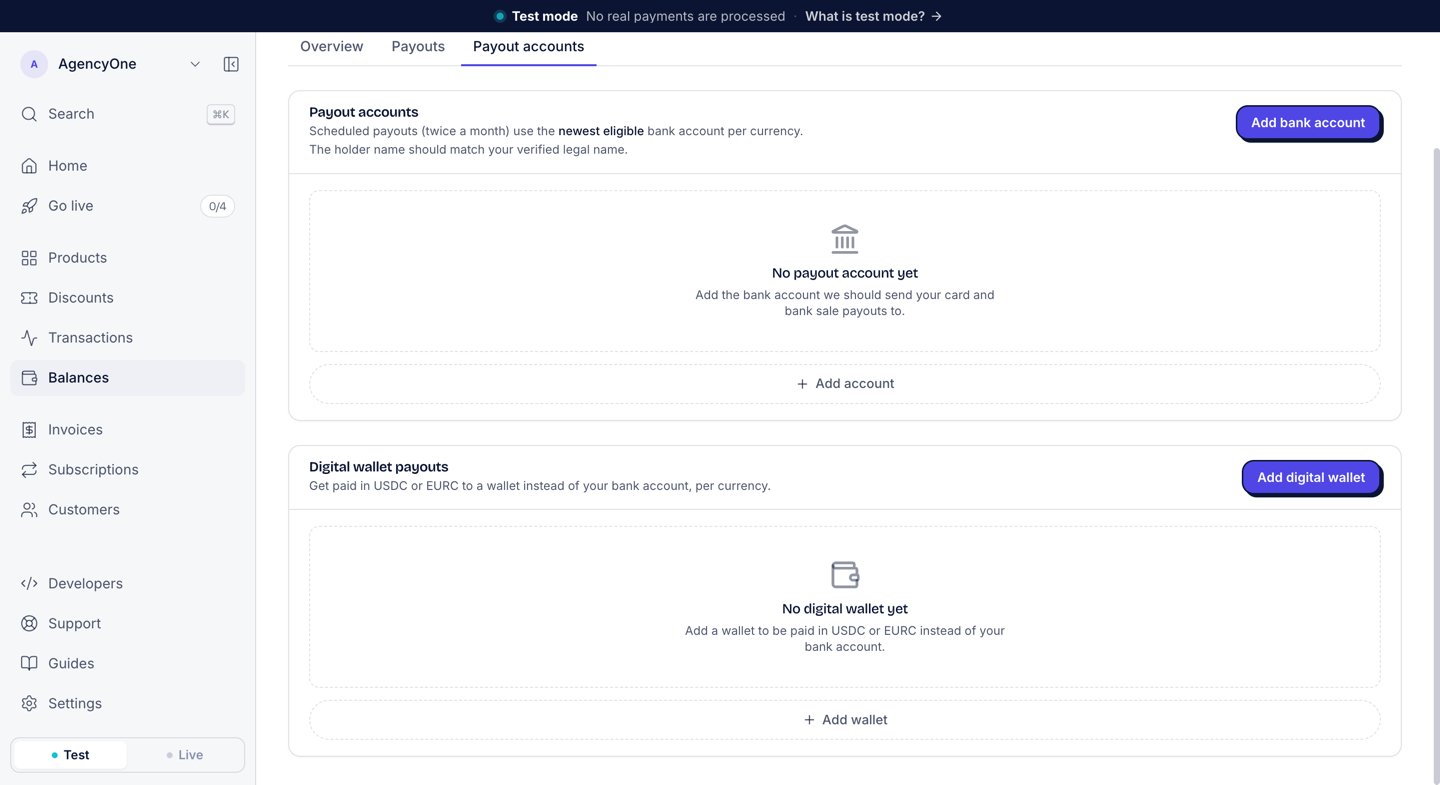
In the dashboard sidebar, click **Balances**. Then click the **Payout accounts** tab. The **Digital wallet payouts** section is below your bank accounts.
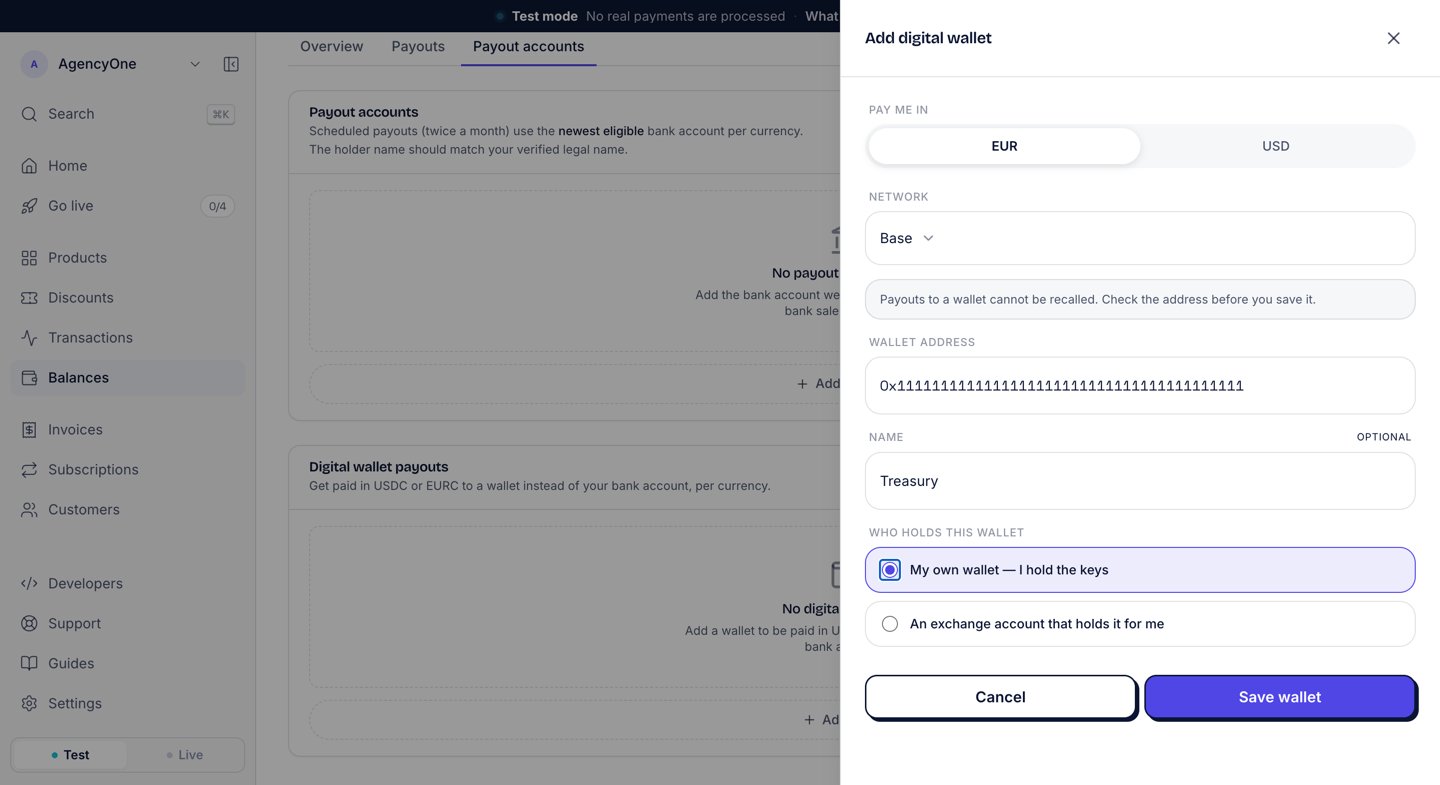
Click **Add digital wallet**. The **Add digital wallet** panel opens.
* **Pay me in**: choose **EUR** or **USD**.
* **Network**: choose the network your wallet receives on. **Base** is selected first.
* **Wallet address**: paste the address. "Payouts to a wallet cannot be recalled. Check the address before you save it."
* **Name**: optional, for example "Treasury".
* **Who holds this wallet**: choose **My own wallet — I hold the keys** or **An exchange account that holds it for me**.
Click **Save wallet**.
 AgentaOS checks the address before it saves it. It refuses an address that is not valid on the network you chose, the burn address, and the contract address of a USDC or EURC token. Anything sent to those addresses cannot be recovered.
AgentaOS sends your answer to **Who holds this wallet** with each payout, as part of the information that crypto transfers must carry about the sender and the receiver.
## Pay a currency to the wallet
Saving a wallet does not move your payouts to it. Your bank account keeps receiving them until you choose the wallet:
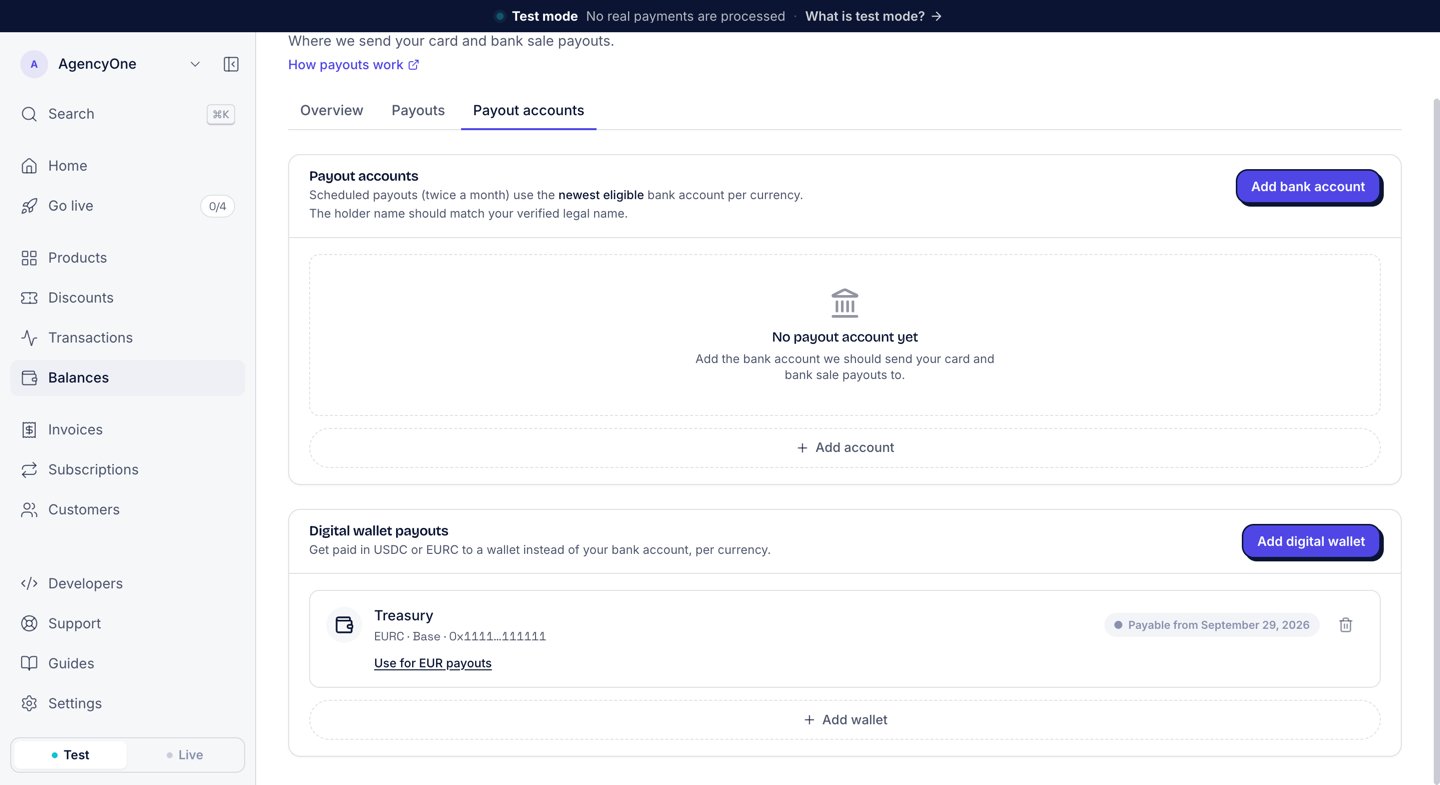
1. On the wallet's row, click **Use for EUR payouts** or **Use for USD payouts**.
2. The row then shows "Pays your EUR payouts." (or USD).
If you have no bank account in that currency and have not chosen a wallet, that currency is not paid out.
To return to your bank account, click **Switch back to bank** on the wallet's row. If you remove the wallet that pays a currency, that currency goes back to your bank account.
AgentaOS checks the address before it saves it. It refuses an address that is not valid on the network you chose, the burn address, and the contract address of a USDC or EURC token. Anything sent to those addresses cannot be recovered.
AgentaOS sends your answer to **Who holds this wallet** with each payout, as part of the information that crypto transfers must carry about the sender and the receiver.
## Pay a currency to the wallet
Saving a wallet does not move your payouts to it. Your bank account keeps receiving them until you choose the wallet:
1. On the wallet's row, click **Use for EUR payouts** or **Use for USD payouts**.
2. The row then shows "Pays your EUR payouts." (or USD).
If you have no bank account in that currency and have not chosen a wallet, that currency is not paid out.
To return to your bank account, click **Switch back to bank** on the wallet's row. If you remove the wallet that pays a currency, that currency goes back to your bank account.
 ## The 24-hour wait
AgentaOS does not pay a new wallet until 24 hours after you save it. Until then, its row shows **Payable from** and the date. After that, it shows **Ready for payouts**.
If a payout window falls inside those 24 hours and the wallet pays that currency, the payout waits for the next window. It does not go to your bank account instead.
You cannot edit a wallet's address, network or currency. To use a different address, add a new wallet. The new wallet gets its own 24-hour wait.
## Fees
A stablecoin payout carries two fees, both listed on the payout statement:
* **Payout fee**: the same as a bank payout. See [Payouts](/payouts/overview#fees).
* **Wallet corridor fee**: 1% of the amount paid out, plus €2 or \$2, plus the cost of the bank transfer that funds the stablecoin payout. The network fee is included.
On **You ask**, the **Payouts** tab shows what you would receive today and the fees before you request the payout.
## Next steps
Your balance, the schedule, and the documents for each payout.
Save a bank account for the currencies you do not pay to a wallet.
## The 24-hour wait
AgentaOS does not pay a new wallet until 24 hours after you save it. Until then, its row shows **Payable from** and the date. After that, it shows **Ready for payouts**.
If a payout window falls inside those 24 hours and the wallet pays that currency, the payout waits for the next window. It does not go to your bank account instead.
You cannot edit a wallet's address, network or currency. To use a different address, add a new wallet. The new wallet gets its own 24-hour wait.
## Fees
A stablecoin payout carries two fees, both listed on the payout statement:
* **Payout fee**: the same as a bank payout. See [Payouts](/payouts/overview#fees).
* **Wallet corridor fee**: 1% of the amount paid out, plus €2 or \$2, plus the cost of the bank transfer that funds the stablecoin payout. The network fee is included.
On **You ask**, the **Payouts** tab shows what you would receive today and the fees before you request the payout.
## Next steps
Your balance, the schedule, and the documents for each payout.
Save a bank account for the currencies you do not pay to a wallet.