> ## Documentation Index
> Fetch the complete documentation index at: https://docs.agentaos.ai/llms.txt
> Use this file to discover all available pages before exploring further.
# Dashboard tour
> A tour of app.agentaos.ai: where to find your products, payments, customers, and settings. No code required.
[app.agentaos.ai](https://app.agentaos.ai) is where you run the business side of AgentaOS: create things to sell, watch money come in, and manage your team and API keys. Everything below is reachable by click, no code needed.
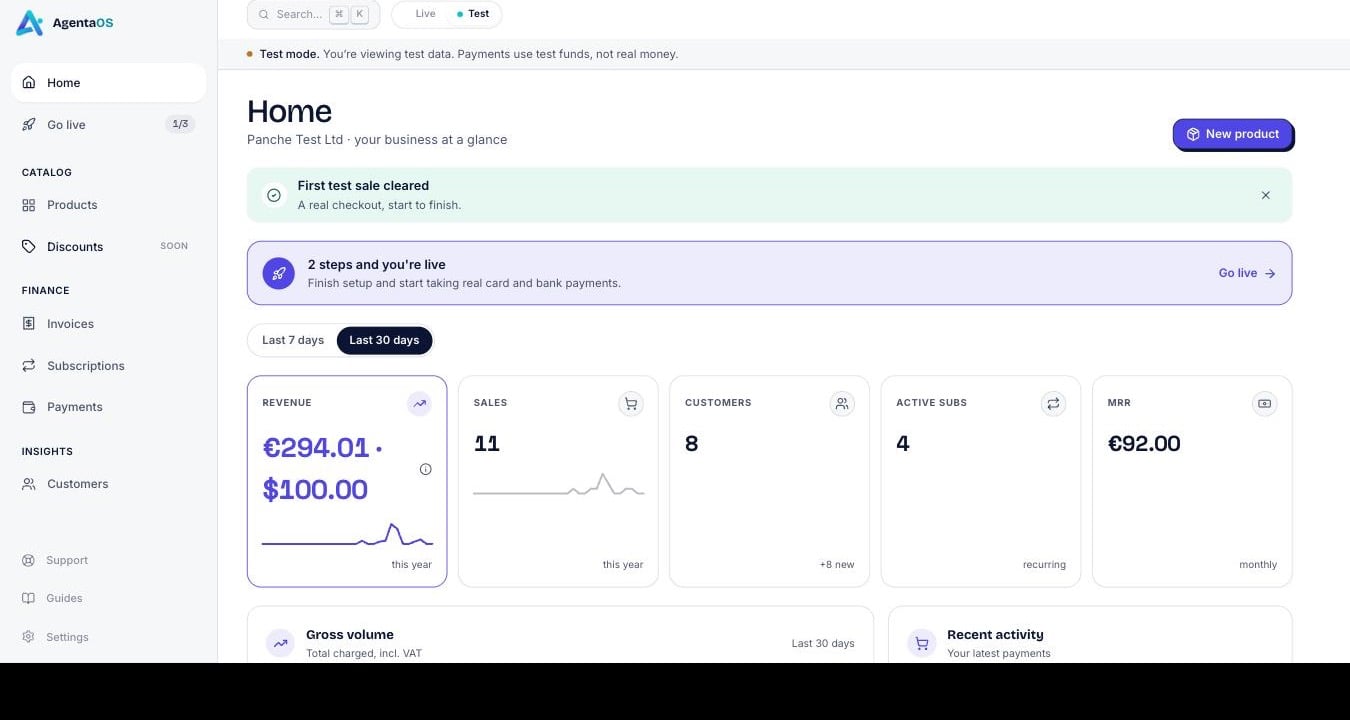 Every page is scoped by the **Test / Live** switch at the top of the sidebar. Toggle it to see test-mode data (safe to explore, see [Test mode and live mode](/getting-started/test-mode)) or live data (real money, gated on verification).
## Home
Your landing page after sign-in. Sales volume over the last 7 or 30 days, subscription MRR, customer count, and a recent-activity feed. If you haven't gone live yet, a checklist card walks you through what's left.
## Catalog → Products
Where you create what you sell: one-time payment links or subscription plans. Each product is a shareable checkout URL, no code required to publish one. See [Payment links](/payments/payment-links) for the concept in depth, or the [Payment SDK](/sdk/pay-overview) to create them from code instead.
## Finance → Payments
Your balance, in EUR and USD: **Available**, **Incoming**, **In reserve**, and your next payout date. Every confirmed payment and payout also lands in the activity feed on this page, this is the one place to answer "where's my money."
## Finance → Invoices
Every completed payment issues a tax-correct invoice automatically. Download the PDF, void one if you need to, or export a batch for your accountant.
## Finance → Subscriptions
Recurring billing your buyers started by paying a subscription payment link. List active subscriptions, check status, and cancel from here, the same actions the SDK's `subscriptions` resource exposes.
## Insights → Customers
Everyone who has paid you: email, country, and VAT number where provided. This list builds itself; there's nothing to import.
## Go live
The sidebar's durable readiness tracker, with a progress chip that shows what's left before you can accept live payments. Business verification (KYB) is the main step. See [How Merchant of Record works](/mor/how-it-works) for why it exists.
## Settings → Developers
Your API keys live here, scoped to whichever environment you're viewing (Test or Live), alongside webhooks and your account ID. This is also where you generate a new key or revoke an old one.
## Settings, the rest
A few more tabs round out account management:
Your signed-in identity and security (passkey) settings.
Company details, VAT number, and custom tax rates.
Invite teammates to your account.
Your pricing plan and the fees that apply to each payment method.
## Next steps
First payment in test mode, start to finish.
Test keys, live keys, and what going live requires.
Why verification exists and what we handle for you.
Every resource behind the dashboard, in code.
Every page is scoped by the **Test / Live** switch at the top of the sidebar. Toggle it to see test-mode data (safe to explore, see [Test mode and live mode](/getting-started/test-mode)) or live data (real money, gated on verification).
## Home
Your landing page after sign-in. Sales volume over the last 7 or 30 days, subscription MRR, customer count, and a recent-activity feed. If you haven't gone live yet, a checklist card walks you through what's left.
## Catalog → Products
Where you create what you sell: one-time payment links or subscription plans. Each product is a shareable checkout URL, no code required to publish one. See [Payment links](/payments/payment-links) for the concept in depth, or the [Payment SDK](/sdk/pay-overview) to create them from code instead.
## Finance → Payments
Your balance, in EUR and USD: **Available**, **Incoming**, **In reserve**, and your next payout date. Every confirmed payment and payout also lands in the activity feed on this page, this is the one place to answer "where's my money."
## Finance → Invoices
Every completed payment issues a tax-correct invoice automatically. Download the PDF, void one if you need to, or export a batch for your accountant.
## Finance → Subscriptions
Recurring billing your buyers started by paying a subscription payment link. List active subscriptions, check status, and cancel from here, the same actions the SDK's `subscriptions` resource exposes.
## Insights → Customers
Everyone who has paid you: email, country, and VAT number where provided. This list builds itself; there's nothing to import.
## Go live
The sidebar's durable readiness tracker, with a progress chip that shows what's left before you can accept live payments. Business verification (KYB) is the main step. See [How Merchant of Record works](/mor/how-it-works) for why it exists.
## Settings → Developers
Your API keys live here, scoped to whichever environment you're viewing (Test or Live), alongside webhooks and your account ID. This is also where you generate a new key or revoke an old one.
## Settings, the rest
A few more tabs round out account management:
Your signed-in identity and security (passkey) settings.
Company details, VAT number, and custom tax rates.
Invite teammates to your account.
Your pricing plan and the fees that apply to each payment method.
## Next steps
First payment in test mode, start to finish.
Test keys, live keys, and what going live requires.
Why verification exists and what we handle for you.
Every resource behind the dashboard, in code.